
Understanding User Roles in Willow360
1. Administrator
Administrators have the highest level of access in Willow360. They can:
- Add, edit, and delete users and assign roles.
- Create, modify, and delete teams.
- Create, edit, and delete all workflows in the organisation, regardless of individual workflow permissions.
- Access and manage all Organisation Settings, including language, inbox configuration, two-step verification, Collectors, and credits.
- Purchase credits.
- View and export the credit audit.
There must always be at least one administrator in an organisation. The last remaining administrator cannot be deleted.
Ideal for: IT managers, system administrators, operations leads, senior management.
2. Workflow Creator
Workflow Creators can design and manage their own workflows. They can:
- Access the dashboard and see workflows they have access to.
- Create new workflows.
- Edit workflows where they have been given Can Edit permission.
- See the Admin Settings cog icon and access the workflow editor.
Workflow Creators cannot manage users, teams, or organisation settings. These remain restricted to administrators.
Before sharing a workflow with others, Workflow Creators typically test it by adding files themselves and checking the file history to confirm each action behaves as expected.
Ideal for: process managers, project managers, business analysts, departmental leads.
3. Regular User
Regular Users have the most limited access by default. They can:
- Access the dashboard and see any workflow tiles they have been given permission to use.
- Add files to workflows, complete manual actions such as approvals, signing, and form completion, and view their own file activity.
Regular Users cannot access Admin Settings and cannot create or edit workflows unless they are specifically given Can Edit permission on a workflow. In that case, they will see the cog icon and can access the editor for that specific workflow only.
Ideal for: general staff, team members, anyone who uses workflows without needing to design or manage them.
Workflow Permissions
In addition to the three roles above, access to individual workflows is controlled by a separate set of permissions set within each workflow. These apply to all users regardless of their role (with the exception of administrators, who always have full access to all workflows).
There are three levels of workflow permission:
- Can use workflow: the user sees the workflow tile on their dashboard and can add files to it.
- Can see all files: in addition to the above, the user can view files added by other users.
- Can edit workflow: in addition to the above, the user can modify the workflow configuration.
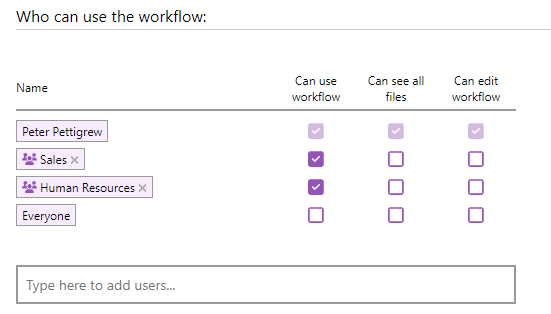
A user with no permission assigned to a workflow will not see it at all.
Permissions can be assigned to individual users, teams, or everyone in the organisation. Individual permissions always take priority over team permissions, which take priority over the Everyone setting.
There must always be at least one user with Can Edit permission on each workflow.
How the Two Layers Work Together
The role determines what a person can do across the platform. The workflow permission determines what they can do within a specific workflow. A Regular User with Can Edit permission on a workflow can edit that workflow but cannot manage users or organisation settings. An Administrator can access all workflows without needing explicit workflow permissions.
Related Articles
How to Create Your First Workflow