
Focus on List input options
Types of List Items
A List input has its own item type, which determines how the selected value can be used as metadata in downstream actions. The supported item types are:
- Text
- Number
- User
- Date
The item type matters because it controls where the List's output can be used. For example, a List of Email type can be used to populate the recipient field of an email action. A List of User type can be used to dynamically assign an approver.
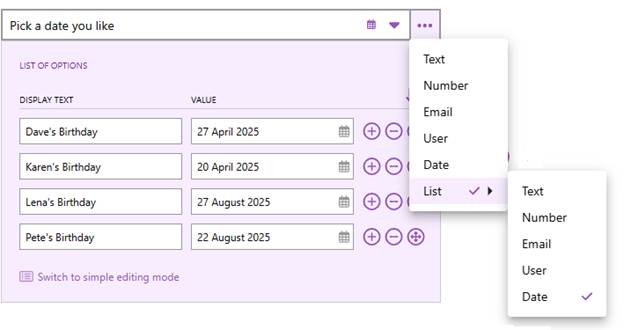
Simple Mode and Advanced Mode
List inputs can be configured in two modes.
Simple mode is the default. Options are entered as plain tokens, where the display text and the underlying value are the same. This is sufficient for straightforward selections where what the user sees is also what the workflow uses, such as a status field with options like Approved, Pending, and Rejected.
Advanced mode is used when you want the display text shown to the user to differ from the value stored and used by the workflow. Each option has a display text and a value configured separately. Display text must be unique across all options. The value does not need to be unique. You can also reorder options and sort them alphabetically by display text.
A copy icon lets you copy a list configuration to the clipboard for reuse in other actions or workflows. A wizard icon provides access to built-in option templates such as Yes/No, Rating 1-10, and other common configurations, which can save significant setup time.
Examples and Use Cases
1. Text List
Use case: Approval Status
Display text: "Approved", "Pending", "Rejected" Value: "A", "P", "R"
Why it is useful: users select a clear status label while the workflow uses a short code for downstream processing or reporting, keeping the form simple and the data precise.
2. Number List
Use case: Rating System
Display text: "Excellent", "Good", "Average", "Poor" Value: "5", "4", "3", "2"
Why it is useful: users select a qualitative label that is easy to understand, while the numeric value can be used for calculations, scoring, or analytics in downstream systems.
3. Email List
Use case: Department Routing
Display text: "Technical Support", "Customer Service", "Billing" Value: "techsupport@company.com", "customerservice@company.com", "billing@company.com"
Why it is useful: the user selects a department name rather than typing an email address. The workflow uses the underlying email value to route a Secure Email or System Email action automatically to the correct recipient.
4. User List
Use case: Task Assignee or Approver
Display text: automatically populated from the selected user's name Value: the selected Willow360 user
Why it is useful: the form filler chooses from a curated list of named individuals rather than all users in the organisation. The selected user can then be used as the approver in an Approve action, a signer in Simple Sign, or a recipient in an email action. Note that in Advanced mode, the display text for a User type option is filled automatically when a user is selected from the dropdown, and the value is a reference to that user rather than a manually typed email address.
5. Date List
Use case: Project Milestones
Display text: "Kickoff", "Midpoint Review", "Final Presentation" Value: "01 April 2025", "15 June 2025", "30 September 2025"
Why it is useful: the user selects a meaningful milestone name and the workflow captures the associated date as a Date type value, which can be used in file naming, stamping, or scheduling actions. In Advanced mode, the display text is filled automatically when a date is picked from the calendar.
Configuration Tips
All input names within a single Supply Information or Fill in a Form action must be unique. Duplicate names are not permitted.
When switching from Simple mode to Advanced mode, existing options carry over with equal display text and value. When switching back to Simple mode, any options where both display text and value are empty are removed automatically.
If you change the item type of an existing list after options have already been configured, Willow360 will attempt to convert existing values to the new type where possible. For example, switching from Email to User will convert values to the matching user if one exists with that email. Switching from User to Number will remove the values as they cannot be converted.
Related Articles
Data Types and Collection Options in Willow360
Unlocking the Power of Metadata in Willow360
Supply information action uses