
Securing Willow360 with 2FA
Two-Factor Authentication (2FA) in Willow360 adds an extra layer of security to user accounts by requiring a second form of verification in addition to the usual username and password. This helps ensure that only authorized users can access their accounts, even if their password is compromised.
How to Turn On 2FA in Willow360
- Access Organisation Settings:
- Navigate to the Admin Settings by clicking the cog icon in the top right corner of the dashboard.
- Select "Organisation Settings."
- Enable Two-Step Verification:
- In the Organisation Settings, find the "Authentication" panel.
- Turn on the "Two-step verification" option. This applies to all users.
- Force Users to Re-enter Credentials (Optional):
- You can force all users to re-enter their credentials immediately by clicking the "Force all users to re-enter their credentials" link. This ensures that all users will set up 2FA the next time they log in.
User Experience with 2FA
- Initial Setup:
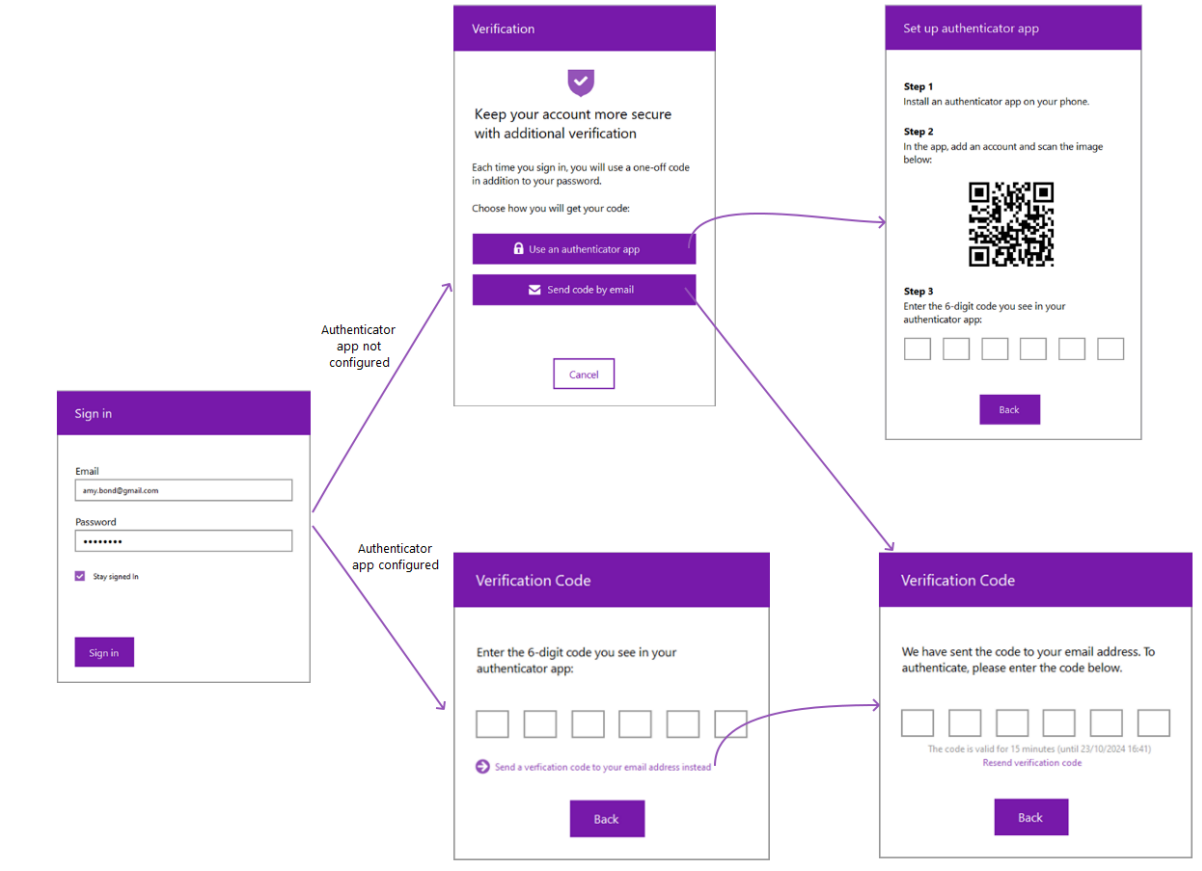
- After 2FA is enabled, users will be prompted to set up their preferred method of receiving the verification code the next time they log in.
- Users can choose between using an authenticator app or receiving the code via email.
- Using an Authenticator App:
- Users will scan a QR code with their authenticator app (e.g., Microsoft Authenticator, Google Authenticator).
- The app will generate a 6-digit verification code every 30 seconds.
- Users will enter this code to complete the login process.
- Receiving Code by Email:
- Users will receive an email with a verification code each time they log in.
- The code is valid for 15 minutes and must be entered to complete the login process.
- Logging In:
- After entering their username and password, users will be prompted to enter the verification code from their chosen method.
- If using an authenticator app, they will enter the 6-digit code displayed in the app.
- If receiving the code by email, they will enter the code sent to their email address.
- Session Management:
- Users can choose to stay signed in, which will remember their credentials for a year unless they sign out.
- If they do not choose to stay signed in, they will need to enter their credentials and the verification code each time they start a new session.
- Managing 2FA Settings:
- Users can manage their 2FA settings in their Personal Settings under the "Stored Credentials" panel.
- They can disconnect their authenticator app or change their email preferences for receiving codes.
- Logon Flow with 2FA:
By enabling 2FA, Willow360 ensures that user accounts are more secure, reducing the risk of unauthorized access.