
Personal Signatures in Willow360
A problem you might encounter is that if the signature image has a white background instead of a transparent one, the white will cover portions of the document:

Below are 2 methods of creating a transparent signature
The simplest method
There are many websites that will allow you to create a signature by drawing on the screen with a mouse or your finger if using a mobile phone. Below are two examples.
https://createmysignature.com/
https://signaturely.com/online-signature/
When you have saved the image from either of these websites you can add your new transparent signature into Willow360 and use it when using the SimpleSign tool or when automatically stamping your signature into documents.
Creating the image from a real signature
This is a bit more effort but is worth it for authenticity and can be used to capture physical company stamps or other marks you may use for identity.
- Sign your name on a blank sheet of printer paper. Paper quality and type of pen do not really matter, just make sure your signature is straight and not on an angle.
- Scan the paper to PDF or photograph it in clear light with no shadows.
- Open the PDF or image on your computer.
- Open the Snipping Tool or Snip & Sketch on your computer. You may have either or both.
- Select New, you will be given a cursor that you can use to outline your signature, click, and hold the left mouse button as you make your selection.
- Drag a rectangle around the signature staying as close as possible to the outer edges of the signature, when you let go of the left button your signature will be cropped.
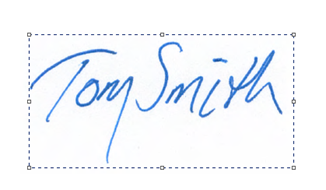
- Select the save icon and name the file “My Signature” and save it to your desktop.
MAKING THE BACKGROUND TRANSPARENT
- Find a free online image converter by Googling “Convert Image to Transparent Background Online” and use the image converter to make the background transparent. An example is LUNAPIC at http://www125.lunapic.com/editor/?action=transparent.
- The next steps use this tool to convert the image to one with a transparent background.
- Click “Choose File” and upload the .png file from step 7.
- From the Lunapic toolbar, select Edit > Make Transparent.
- Click a white part of the image.
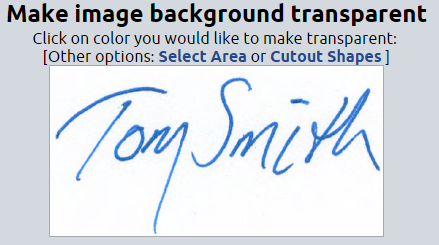
This shows the transparent image.

13. Click “Save” and save the new transparent signature to your desktop.
Now you can add your new transparent signature into Willow360 and use it when using the SimpleSign action or when automatically stamping your signature into documents.